
Inviting and managing members
Invite colleagues into your organization, give them roles, and change or withdraw their access later.
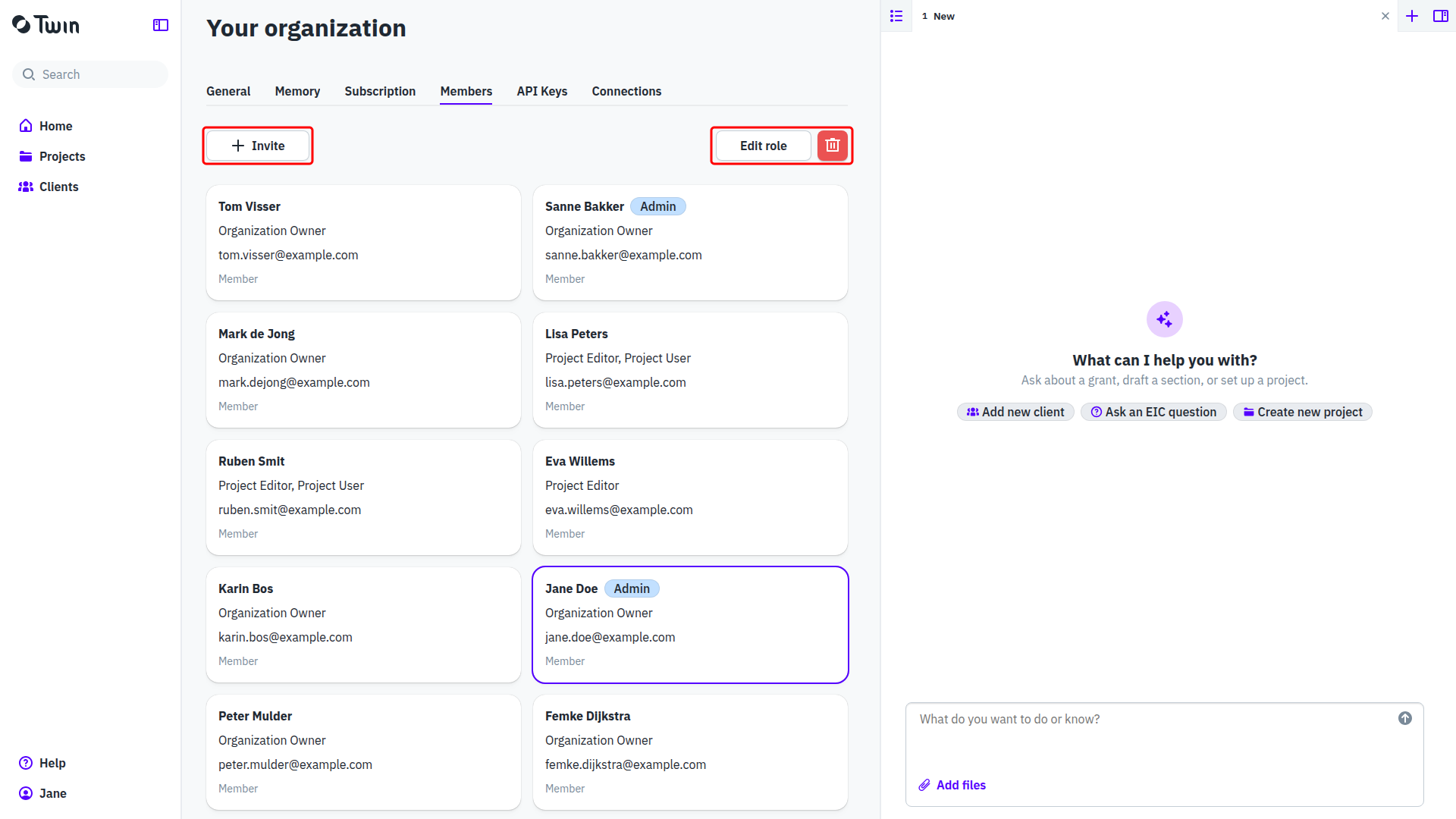
Open the members list
- Click your name at the bottom of the left sidebar and select Organization. Only an Organization Owner can open this page.
- Open the Members tab.
Every member has a card with their name, their roles, their email address, and an Admin badge where that applies. An invitation that has not been accepted yet sits in the same list, marked (invite pending) with the date it was sent.
Invite a member
- Click Invite.
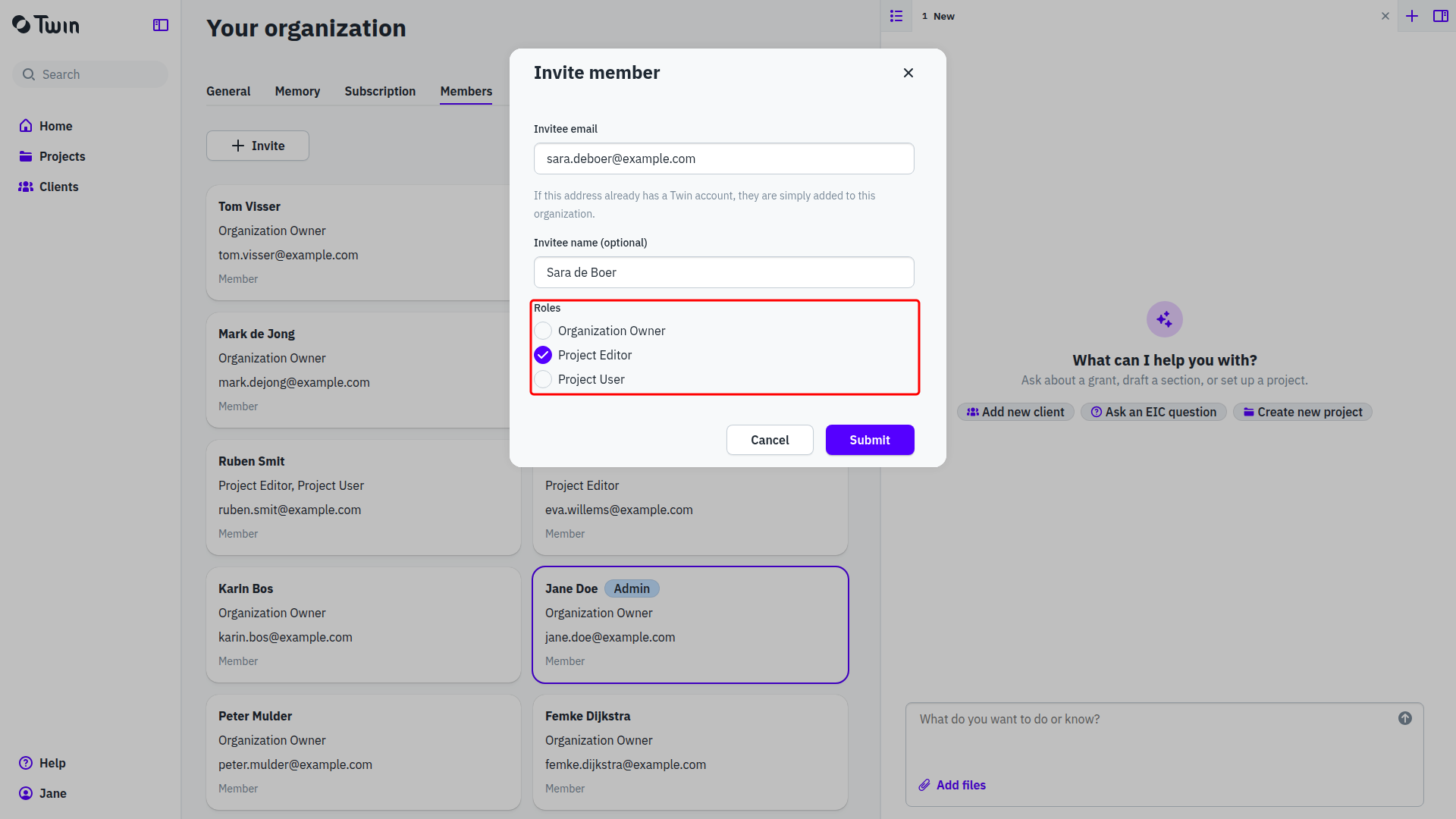
- Fill in Invitee email. Twin notes underneath: If this address already has a Twin account, they are simply added to this organization.
- Invitee name (optional) is used in the invitation. It goes unused when the address turns out to have an account already.
- Under Roles, tick at least one role. You can tick more than one.
- Click Submit.
The invitation now shows in the list as a pending card with two buttons: one sends the invitation again, the other (Remove invite) withdraws it. What the invitee does next is described in Setting up your account from an invite.
The three roles
| Role | What it can do |
|---|---|
| Organization Owner | Can manage organization settings and users, and has full access to projects. |
| Project Editor | Can create, edit, and view projects. |
| Project User | Can view projects. |
What that means in practice, and why Admin is not one of them, is in Roles and working together.
Change someone's roles
- Click the member's card to select it. The actions appear above the list.
- Click Edit role and tick or untick roles. Every click is saved at once, so there is no save button.
You cannot take away your own access to the organization: Twin answers You cannot delete your own organization access and leaves the role in place.
Remove a member
- Click the member's card to select it.
- Click the red bin next to Edit role and confirm. Twin warns that the action cannot be undone.
You cannot remove yourself from the list (You cannot delete yourself). Ask a colleague who is an Organization Owner to do it.
Good to know: if Allowed invite domains is filled in on the General tab, only addresses on those domains can be invited. See Organization settings.