
Viewing section history
Twin keeps the earlier versions of every section, so you can read what a section said before and recover wording you lost.
Open the history of a section
- In the document, click the three-dot menu on the section you want to look at.
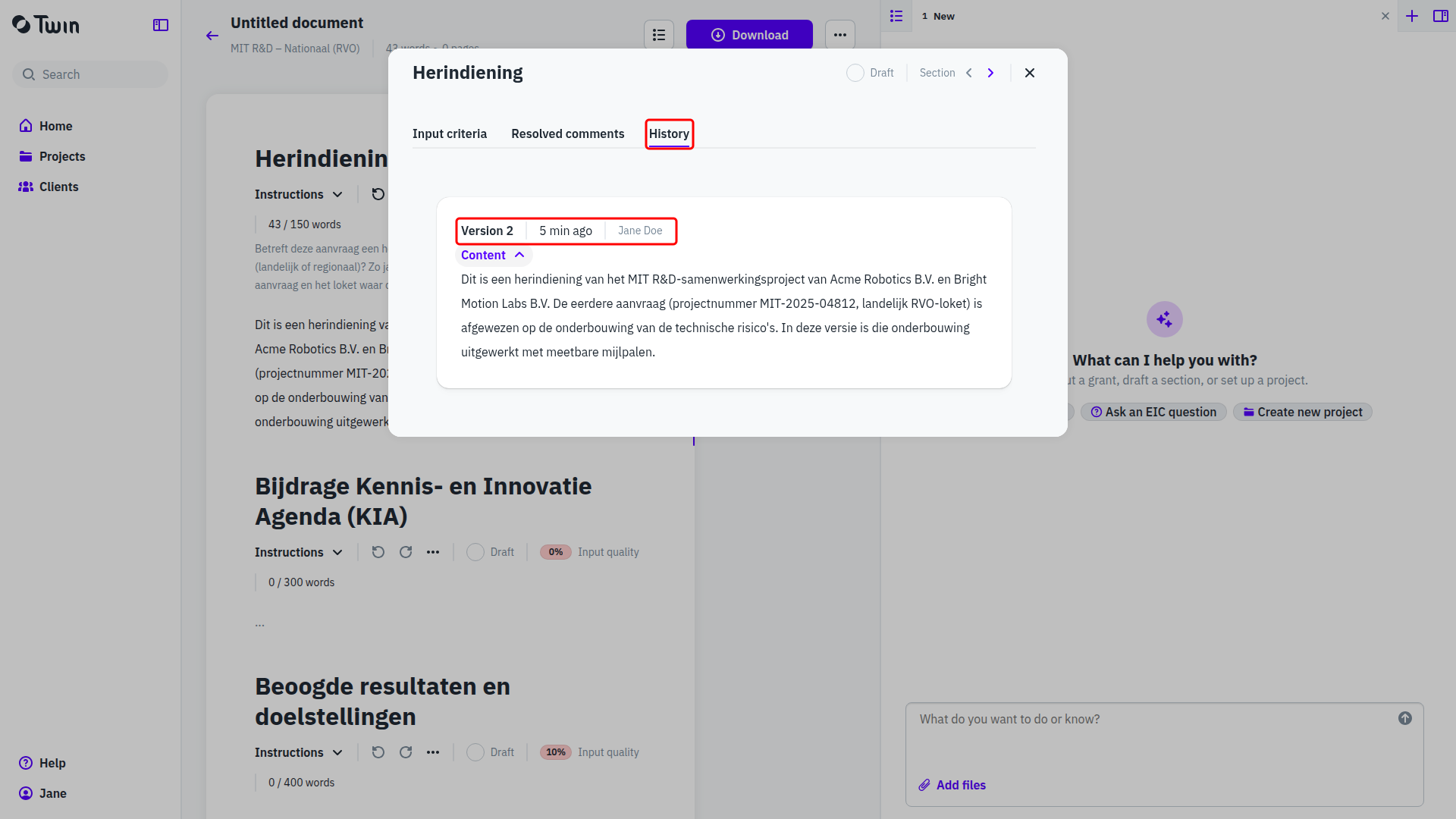
- In the window that opens, switch to the History tab. The other two tabs are Input criteria and Resolved comments.
- Click Content on a version to read its full text.
What a version shows
Each entry opens with the version number, when it was made and who made it: your colleague's name, or AI generated when the assistant wrote it. Under that are the parts that apply to that version:
- Content, the text of the section at that point.
- Decisions, the choices the assistant made while writing.
- Questions, what it still needs from you.
- Feedback, the comments it worked from.
- Summary, its own account of what changed.
A section nobody has written yet shows No versions yet.
When Twin makes a new version
The assistant creates a version every time it writes or rewrites a section. Your own editing is folded into one version instead of one per keystroke: while you keep working on the same section, Twin updates the version you started, and it opens a new one when you come back later or when a colleague takes over. Nothing has to be saved by hand.
Good to know: the section window is the only place where past versions live. There is no button to restore an old version, so copy the wording you want from Content and paste it into the section. See Understanding document sections.