
Understanding document sections
Every document is split into the sections the scheme prescribes, and this article explains what each part of a section does.
Anatomy of a section
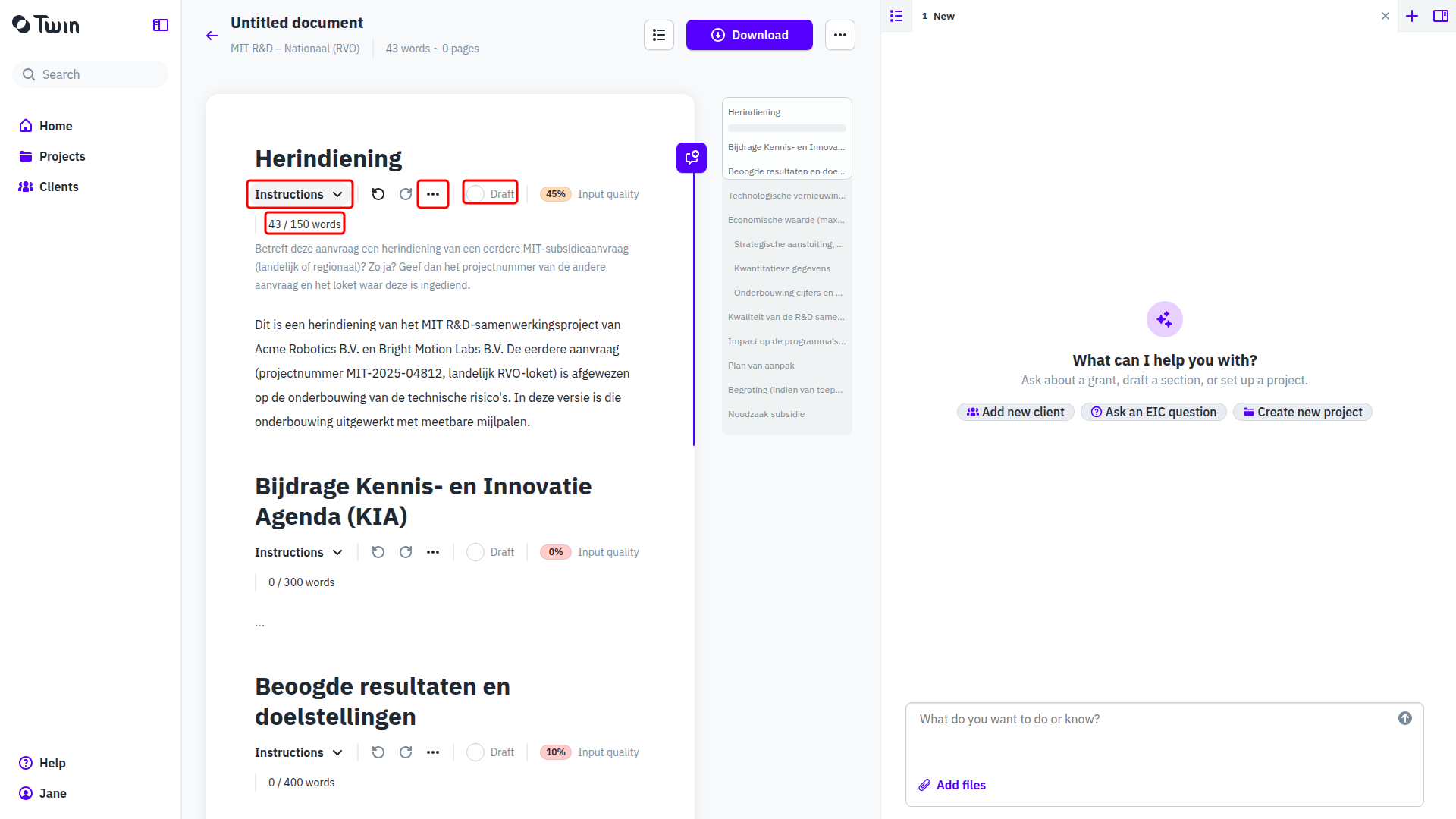
- The title is the section name as the funder defines it. Names and their order come from the document type, so you cannot change them here.
- Instructions expands the funder's guidance for this section. It stays visible until you collapse it again.
- Undo and redo apply to your own typing in this section.
- The three-dot menu opens the section details, described below.
- The Draft or Completed checkbox marks how far the section is.
- The Input quality chip shows how much of what the funder asks for is covered by your sources. A higher score means more of the required information is provided, and less that the assistant has to invent.
- The counter under the toolbar tracks the length against the funder's limit. Depending on the scheme it counts words or characters, for example 43 / 150 words, and turns red once you go over.
- Below that is the text itself, which you can edit directly. Hovering over it reveals Add comment. See Giving expert feedback on a section.
Draft or completed
Tick the checkbox to mark a section Completed. The input quality percentage is replaced by a check mark, and the assistant no longer changes the text. You can still edit it yourself, and unticking the box puts the section back in Draft so the assistant can work on it again.
Section details
Click the three-dot menu on a section to open its details. The header repeats the section title, the Draft or Completed toggle and arrows that step to the previous or next section, so you can walk the whole document without closing the window.
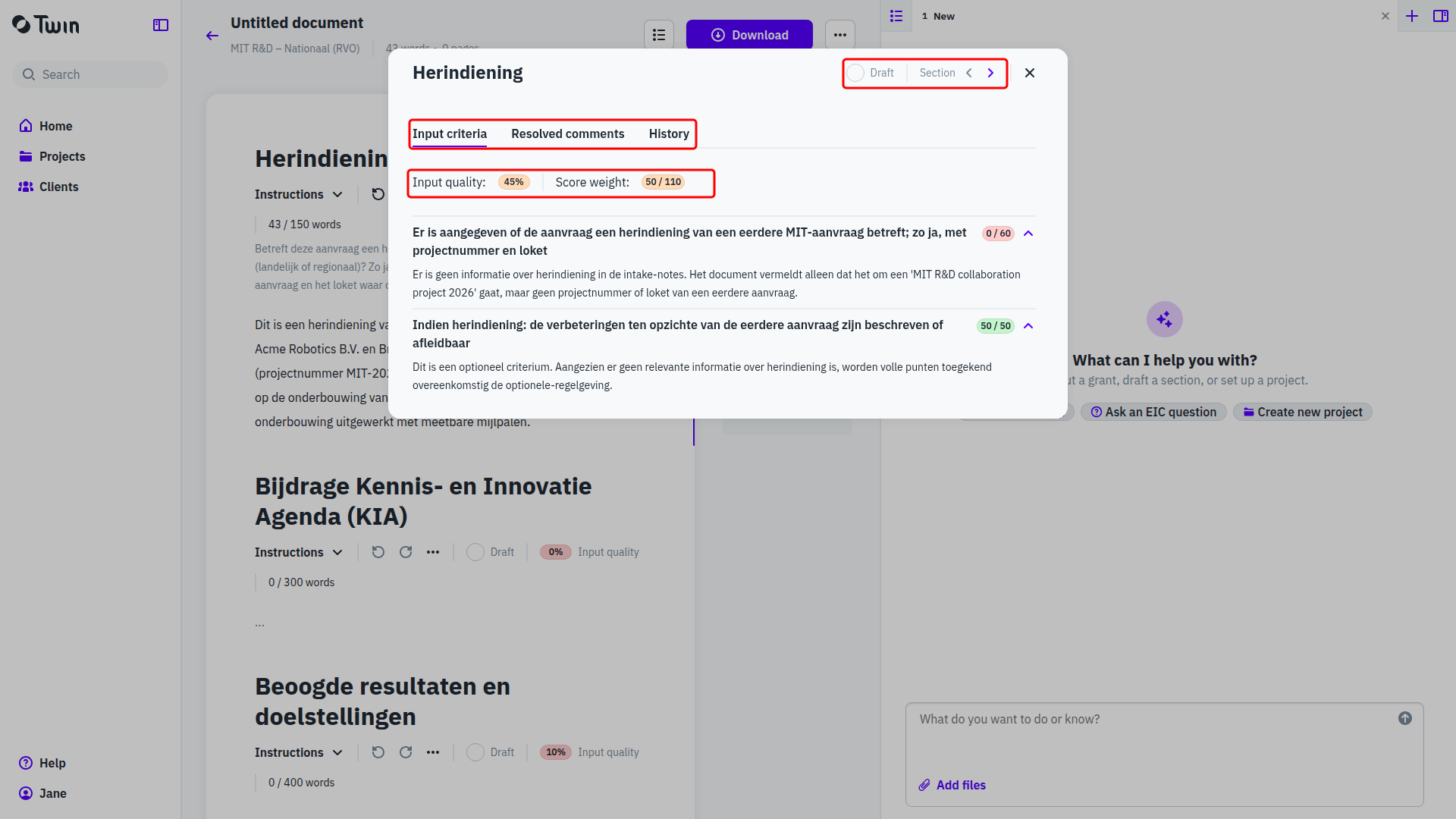
- Input criteria shows Input quality and Score weight for the section, then one row per criterion: what the funder wants to see, the points it scored out of its weight, and why Twin scored it that way. This is the fastest way to see which source is still missing.
- Resolved comments keeps the feedback that has been dealt with, so a discussion stays findable after you close it.
- History lists the earlier versions of the section. See Viewing section history.
Moving between sections
Use Table of contents in the document header. It slides in a list of every section, and clicking one jumps to it. The arrows in the section details window step through the sections one by one.