
Reviewing and editing AI-generated content
Twin drafts each section from your sources. This article covers what to do next: read the draft against the funder's instructions, change it yourself, ask the assistant for a different version, or give the section better material to work from.
Read the draft against the funder's instructions
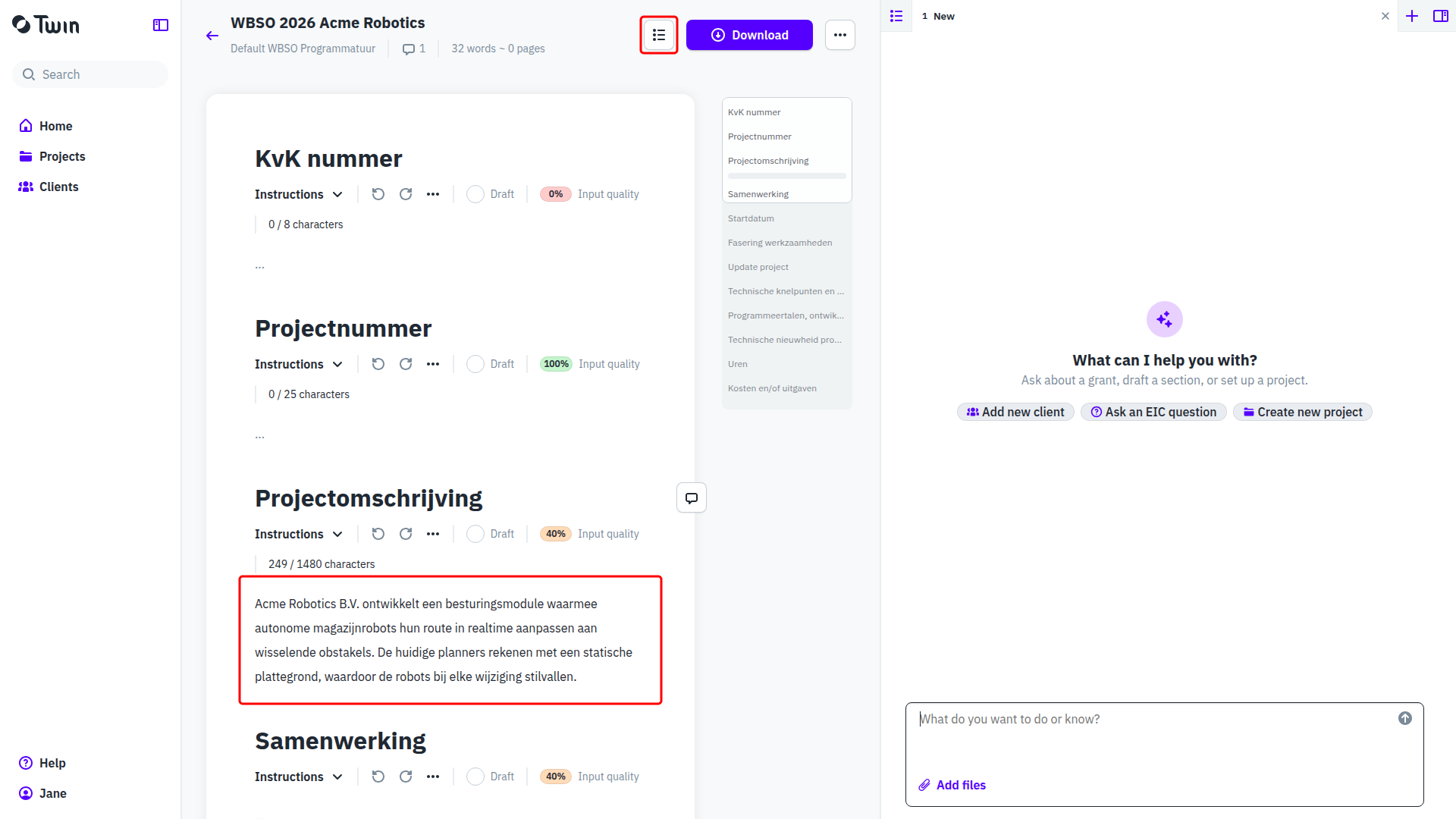
Expand Instructions on a section to see what the funder asks for. Under the toolbar, a section that the scheme caps shows its length against that cap, as a word or a character count. The Input quality chip next to it scores how well your sources cover what the section needs, so a low score usually means the assistant had little to work from rather than that it wrote badly.
The Table of contents button in the document header opens the full list of sections with their input quality scores and takes you to any of them. More on how sections work: Understanding document sections.
Edit a section yourself
- Click into the section and type. Your changes are saved as you work.
- Use undo and redo in the section toolbar to step back through your own edits.
- Tick the Draft checkbox once the section is finished. The label changes to Completed.
Ask the assistant instead
The assistant sits in the column on the right of every page. Name the section and say what you want changed, for example "make the third paragraph concrete about the test setup". It edits the section in place and the text changes in front of you. See Working with the assistant. Feedback that belongs to one section, and should stay with it, is better left as a comment: see Giving expert feedback on a section.
Give the section more to work from
When a section stays thin, the material is usually missing rather than the writing. Add the call text, your intake notes or an earlier application as a source on the project page, or attach it in the chat. See Sources: what Twin writes from.
Compare it with an earlier version
Open the three-dot menu on the section toolbar and go to the History tab. Every version is numbered and shows who produced it, your name or AI generated, along with the Content it held. See Viewing section history.
When you and the assistant edit at the same time
While your cursor is in a section, Twin holds back anything the assistant writes for that same section. If you have changed the text yourself, Twin keeps your version the moment you move away and says on screen that it kept your own text. If you had not changed anything, the assistant's version is applied without a notice. Nothing of yours is overwritten, so ask the assistant to make the change again if you still want it.