
Projects: where an application comes together
This article explains what a project is in Twin, how to create one, and what every part of the project page does.
What a project holds
A project is one grant application, kept in one place: the grant and document type Twin writes against, one or more clients, a deadline, an owner, a status, a project plan, tasks, sources and documents. Everything in the project is available to the assistant while it works on that application.
Projects are the only place documents live. There is no separate documents overview, so to reach a document you open its project first.
Creating a project
Open Projects in the left sidebar and click New project. A three-step wizard opens: Grant, Sources and Start. Every step can be skipped, so a project can be set up in seconds and filled in later.
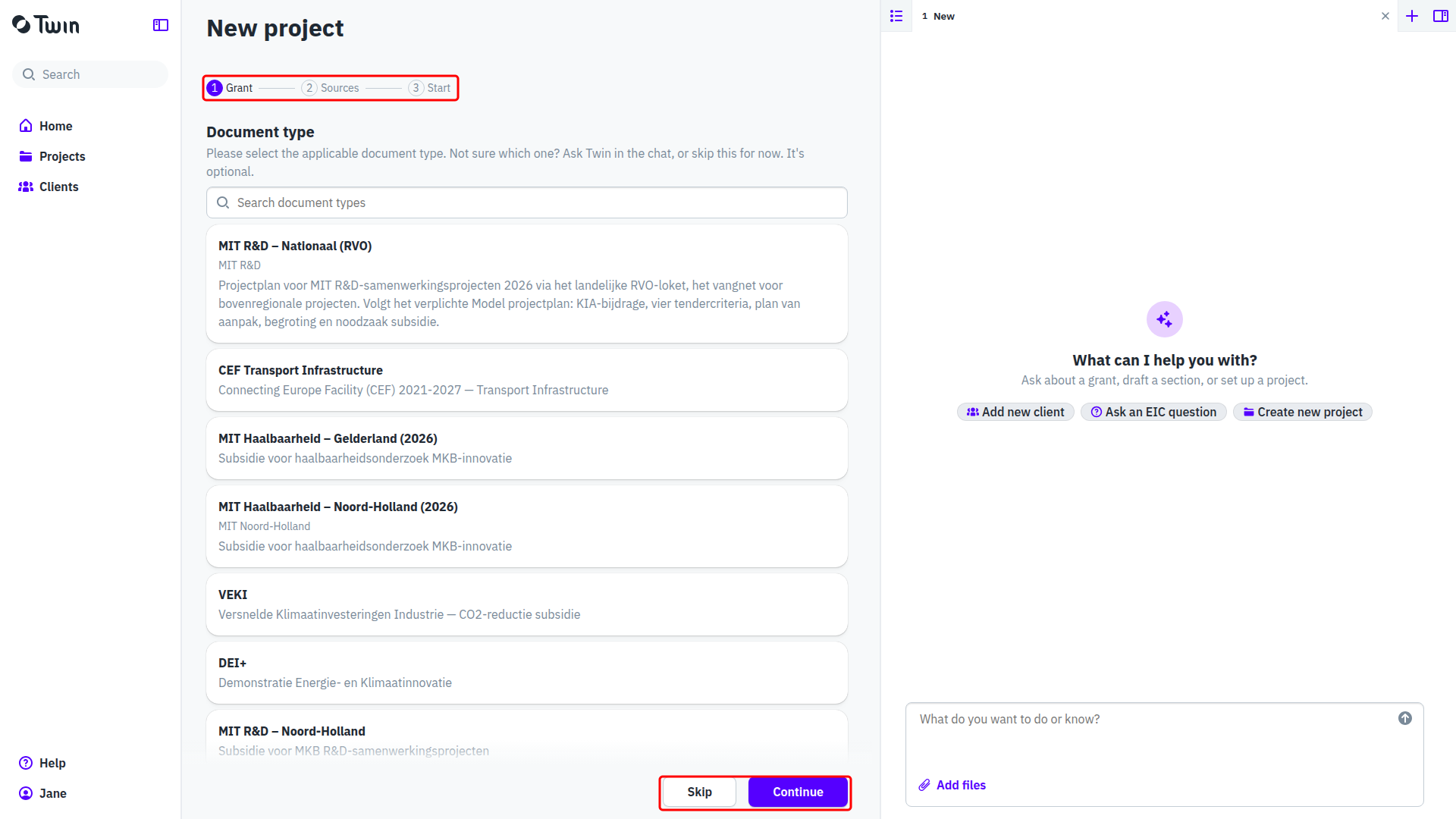
- Step Grant: assign one or more clients and pick the Document type that matches the scheme you are applying for. The document type is optional and can be set later. Typing a client name that does not exist yet offers Create client, which opens the new client form without leaving the wizard.
- Step Sources: add the call text, your intake notes or an earlier application, with Add source or by dropping files on the page. Twin reads these before it writes.
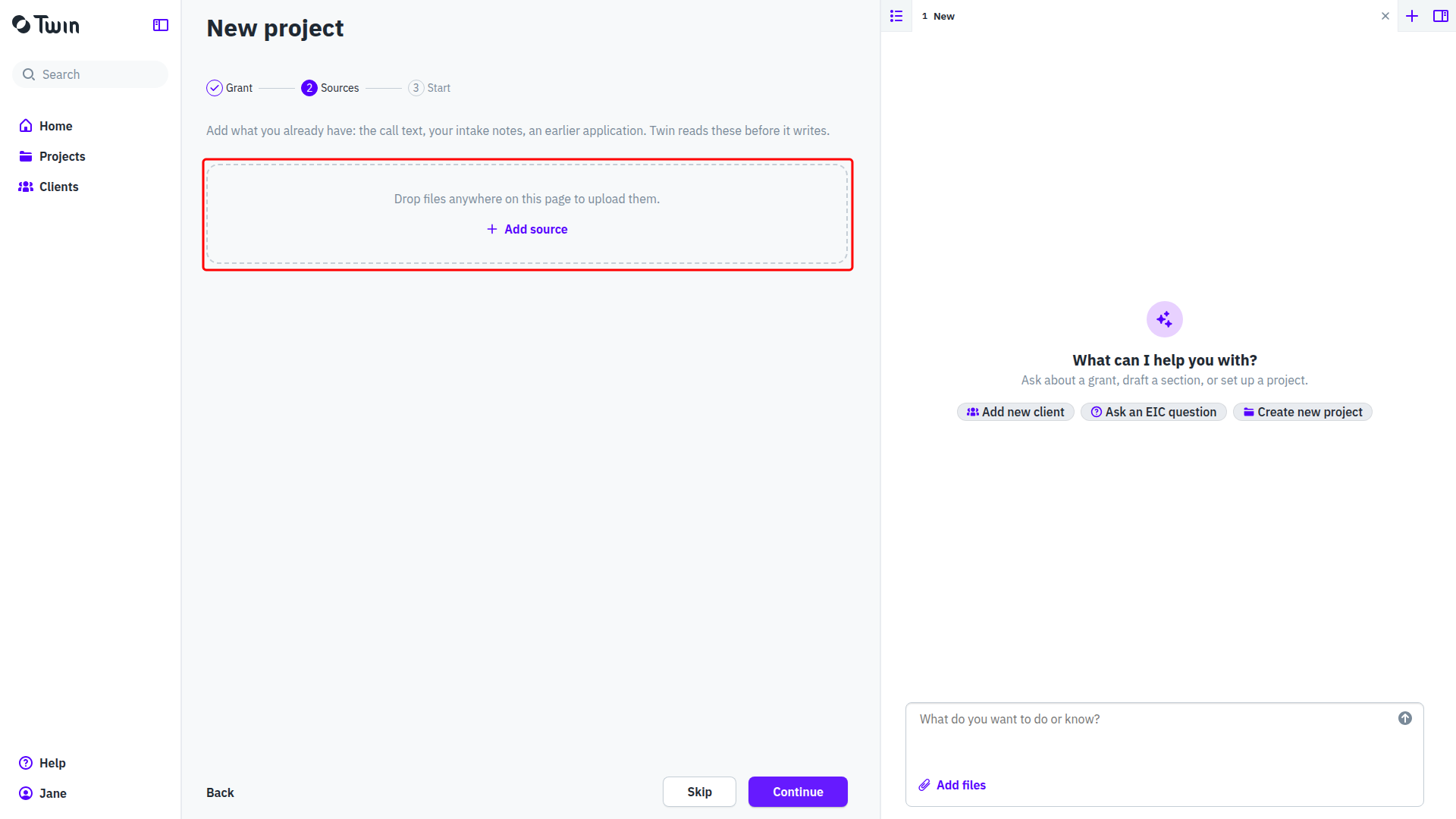
The project is created as soon as you move on from the first step, so a wizard you walk away from at step 2 or 3 still leaves a real project behind.
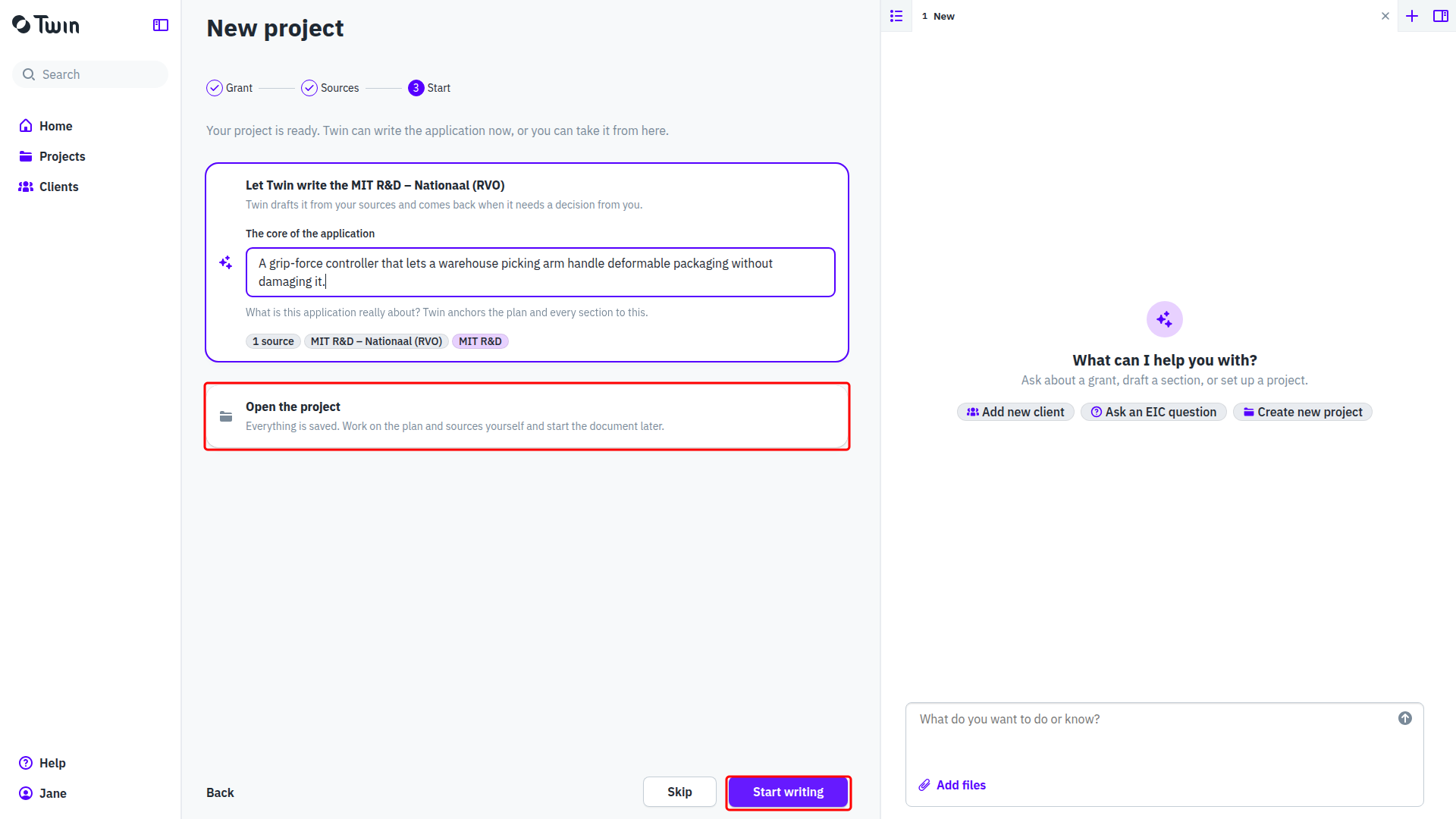
On the last step, Let Twin write the <document type> creates the document and hands it to the assistant, which drafts it from your sources and comes back when it needs a decision. The core of the application is the one or two sentences Twin anchors the plan and every section to. The second card, Open the project, saves everything and takes you to the project page instead; clicking it navigates straight away.
The project page
The page opens with the project name and a meta bar: Type (the linked grant), Client, Owner, Deadline and Status. Anything unset reads as an invitation, such as Choose a grant or Set a deadline. Click a value to change it. The wizard names the project after the client, the grant and the year; click the title to rename it.
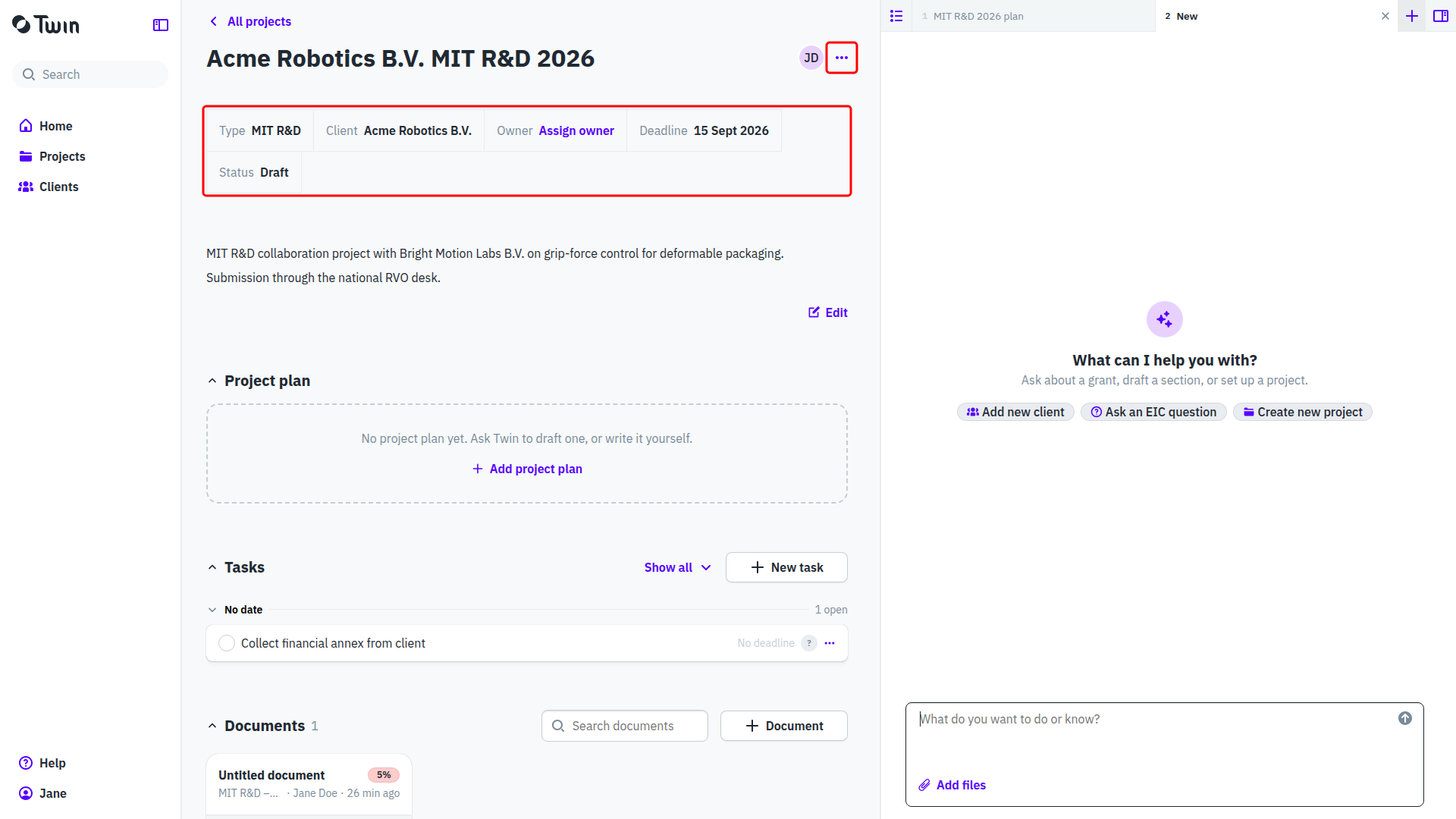
Below the meta bar sit a short description and then three collapsible sections: Files, Tasks and Clients. Files holds the project plan card, the documents and the sources together in one grid, with a Search files box and one Add button whose menu offers Upload file, New note and New document. See Starting a document and Sources: what Twin writes from.
The plan, and the approval Twin waits for
Before it writes any section, the assistant drafts a project plan and stops. The plan card in Files then reads Not approved. Open the card to read and change the plan on the Project plan page, then click Approve and the card reads Approved. The page afterwards records who approved it and when, and whether the plan has changed since. The assistant asks you to confirm in the chat as well, so answer it there to let it carry on.
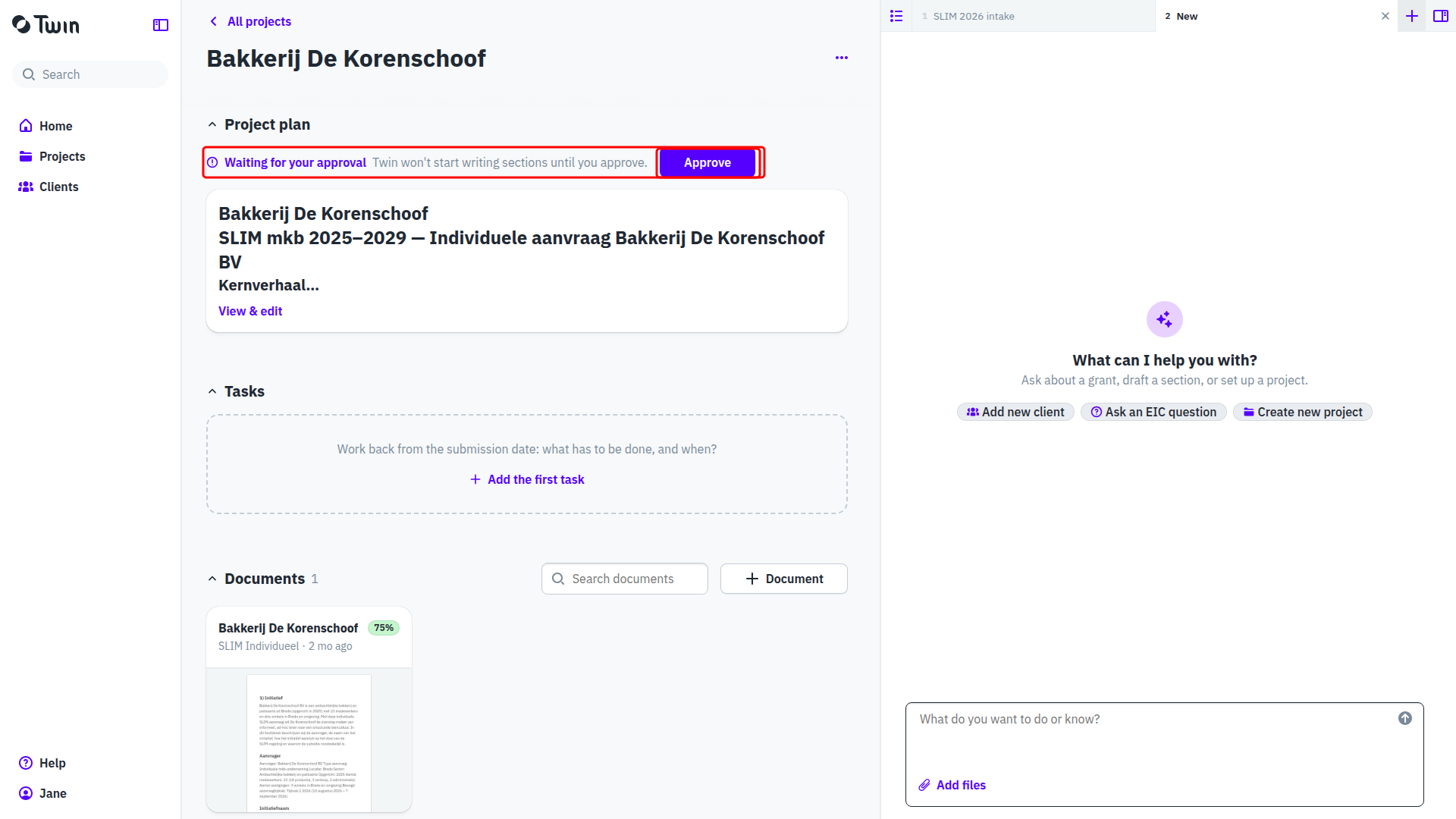
Home lists a project in this state under Your Projects with the reason Plan waiting for your approval, so you do not have to go looking for it.
Status
You set the status yourself, and it moves to Writing on its own when the assistant starts writing. The values are Draft, Writing, Review, Submitted, Awaiting information, Awarded, Rejected and Withdrawn. The same picker has a History view listing every status change.
Deadlines
When a grant is linked, the project inherits its deadline and the field notes where it came from. You can type your own date over it, for instance an internal cut-off. The picker then shows the grant deadline alongside a button Use grant deadline to put it back.
Tasks
Tasks are what you are waiting on, mostly from the client. Click New task or type in the row at the bottom of the list and press Enter; the next empty row stays ready for the following task.
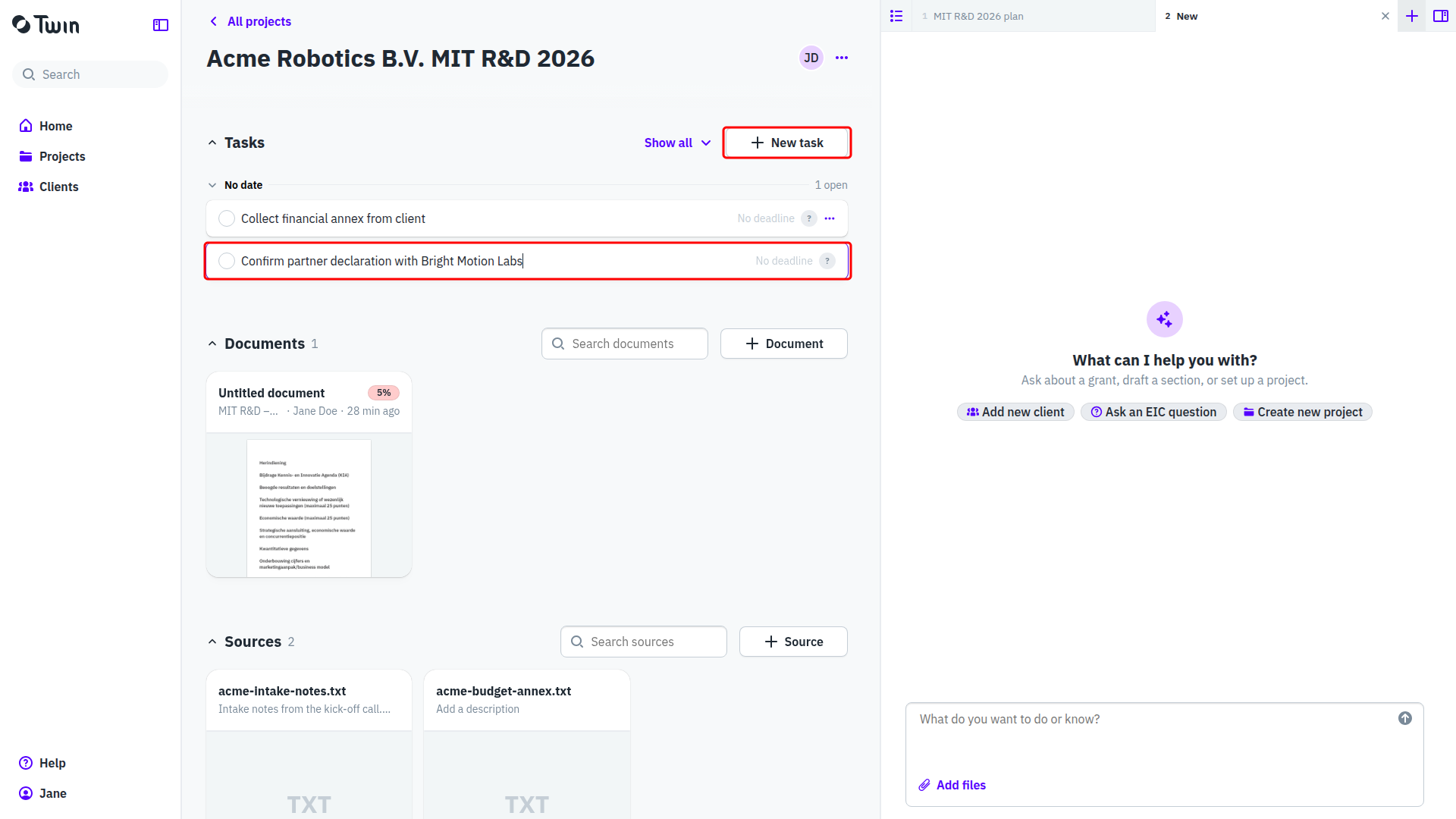
Tasks group by how far they sit from the submission date, under headings such as 2 weeks to deadline, On the deadline and No date. The due date picker works the same way: next to the ordinary dates it counts back from the project deadline. A task takes several assignees through Assign a colleague and a note through Add note. Tick the checkbox to mark it done; The Show all dropdown filters the list to open or completed tasks. Open tasks from every project are collected on Home under Your Tasks.
Clients
A client is a company you apply on behalf of. Open Clients in the sidebar and click New client, or create one from the wizard. The record holds a logo, Client name, Email address, KvK number, Description and an address. Only the name is required, and an address may stay partly filled.
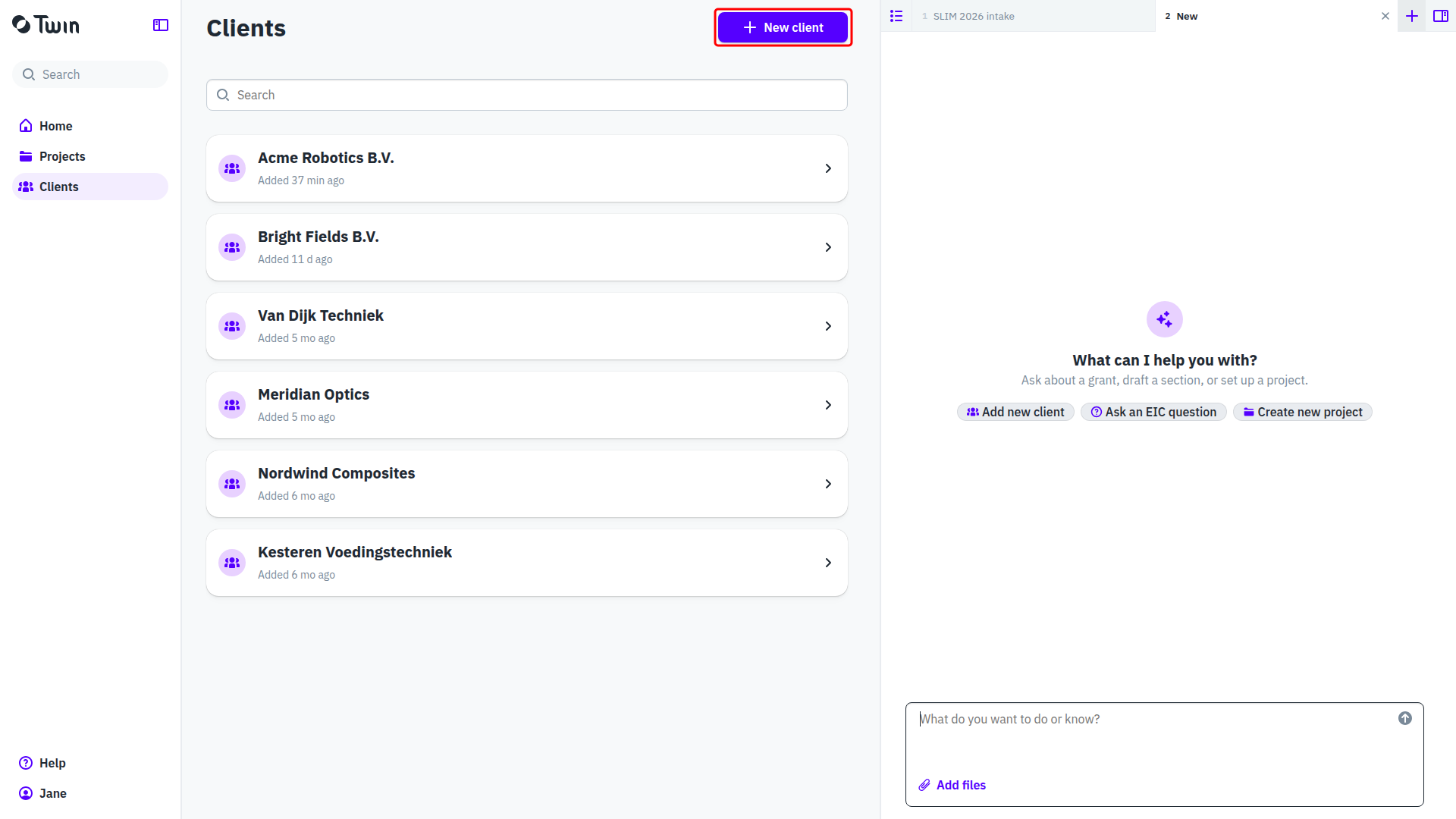
The client page also carries a Memory card: what Twin has learned about that client, shared with everyone in your organization. See Memory: what Twin remembers.
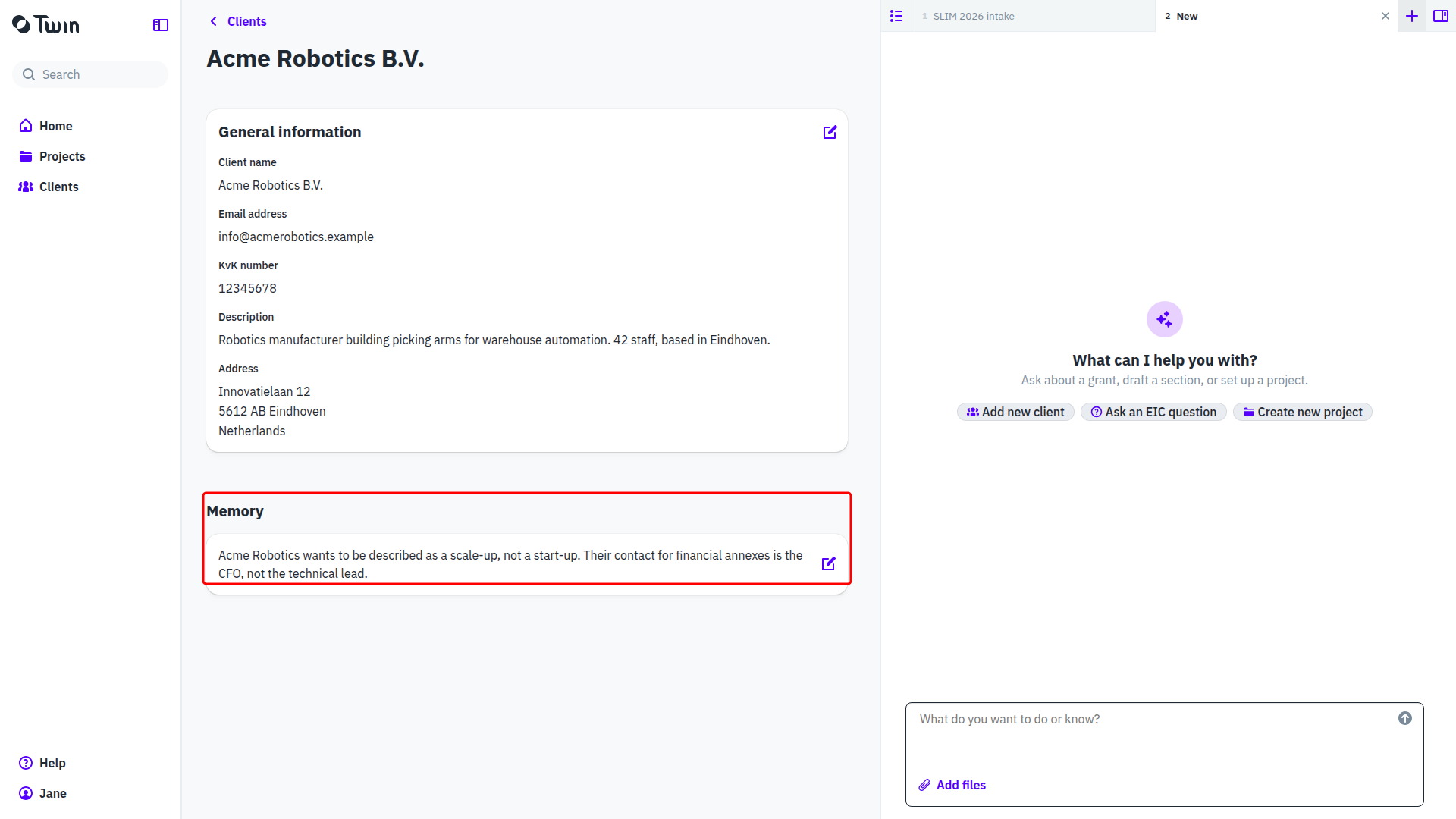
The link runs from the project to the client, not the other way round: a client is assigned on the project, and the client page does not list that client's projects. To see everything for one client, use the Clients filter on the projects overview.
Archiving a project
Projects cannot be deleted. The Project actions menu at the top right holds one item: Archive project, or Unarchive project on a project that is already archived.
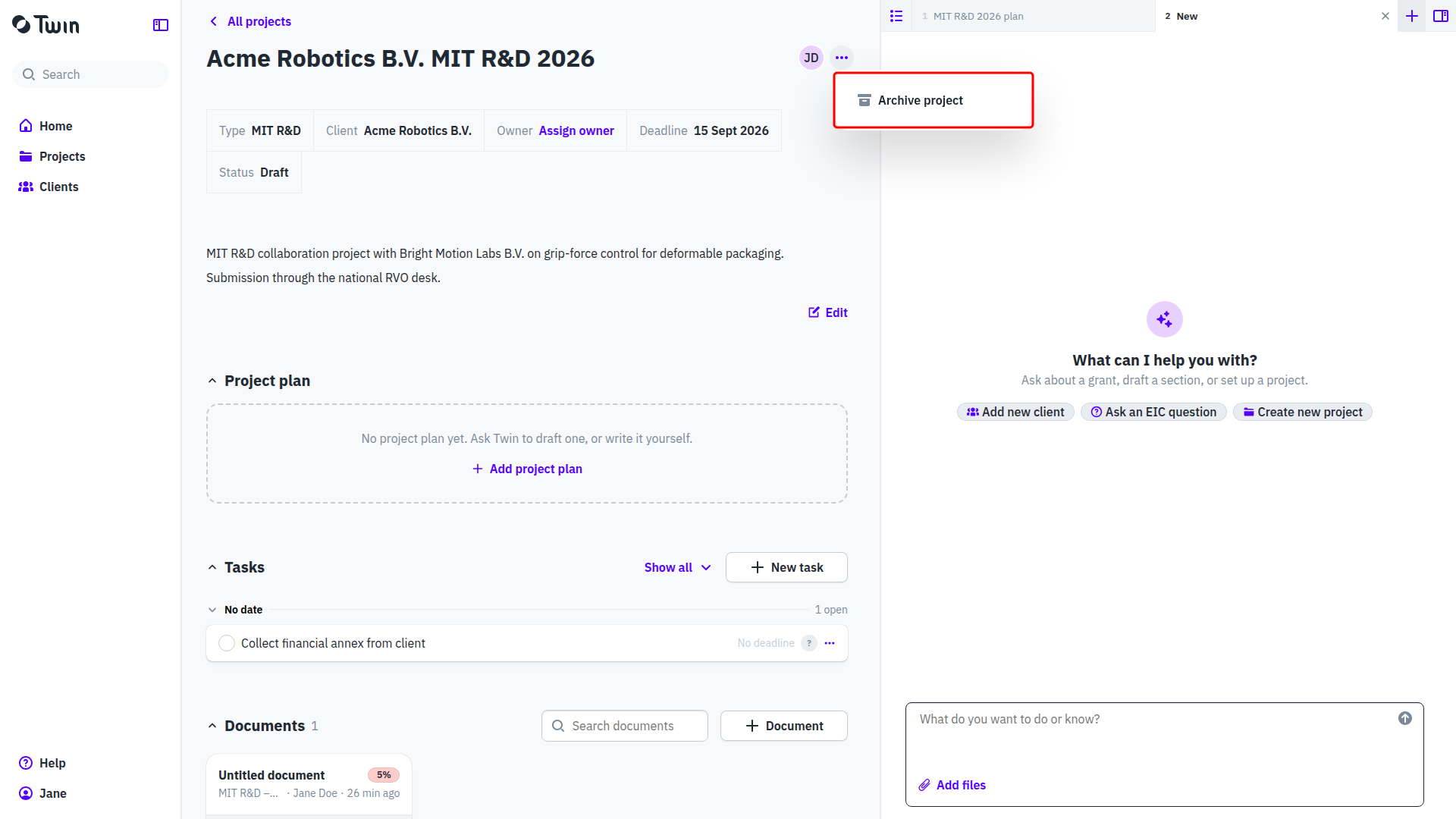
An archived project disappears from the default view. Set the first filter on the projects overview to Only archived to find it again, or to All statuses to see both.
Finding a project again
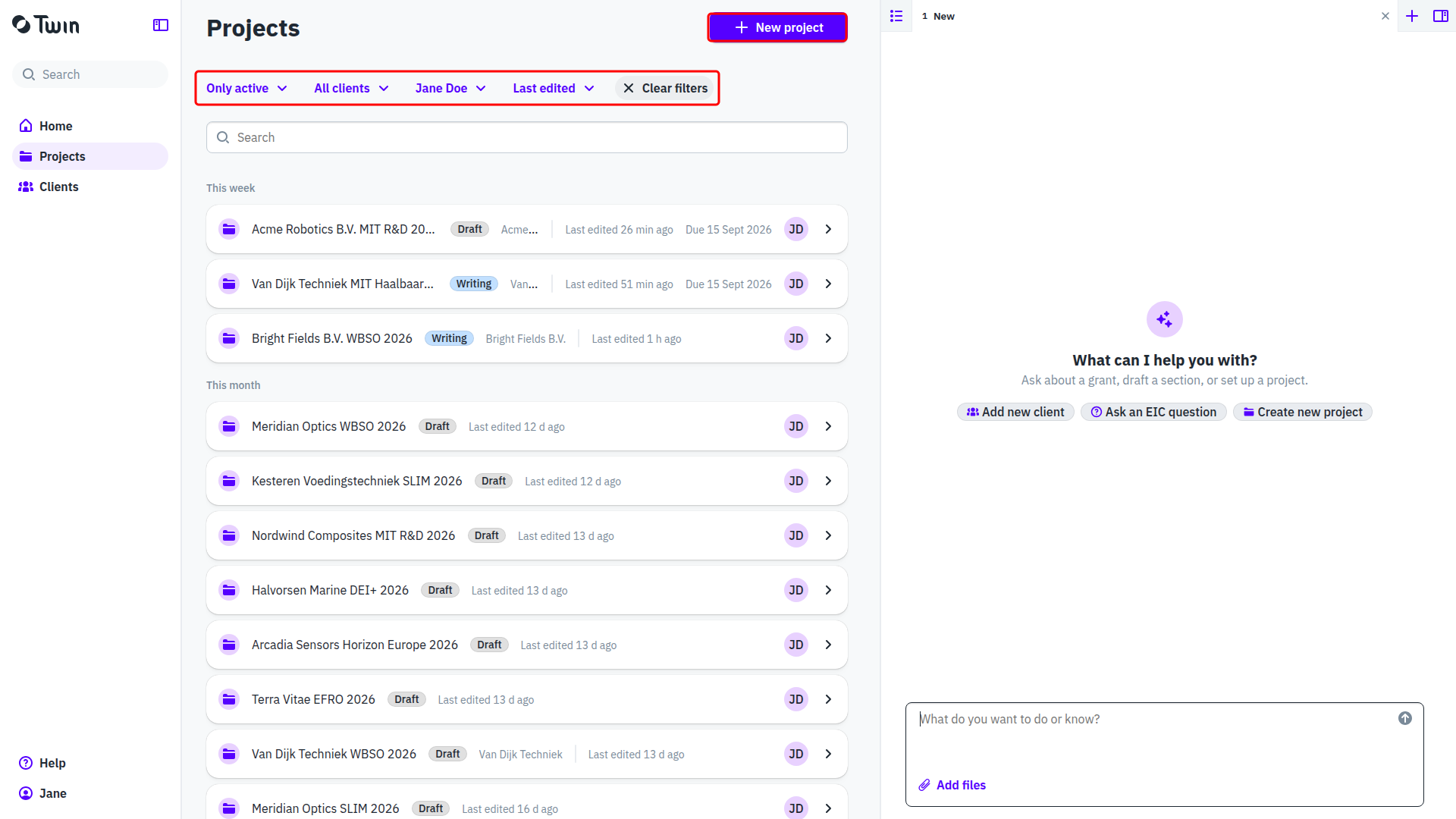
The overview groups projects by when they were last touched, under This week, This month and Older. Above the list sit a search box and four filters: the archive filter, Clients, Users and Sort, which offers Last edited, Newest created, Oldest created and Name A-Z. Clear filters resets all of them.
Good to know: the assistant can do all of this for you. Ask it to create a project, link a grant, add a client or set a task. See Working with the assistant and Which grant schemes Twin supports.