
Starting a document
Every document in Twin is created inside a project, so this article shows how to add one and what you get in the editor.
Create a document
- Open the project the document belongs to. Documents always live in a project, and there is no separate documents page.
- In the Files section, click Add and choose New document.
- In the New document window, pick the document type that matches the scheme you are applying for. Use Search document types to filter the list, or Show more to see the rest.
- Click the card. Twin builds the document with the sections that scheme requires and opens it. It writes from the project's sources, so add those first.
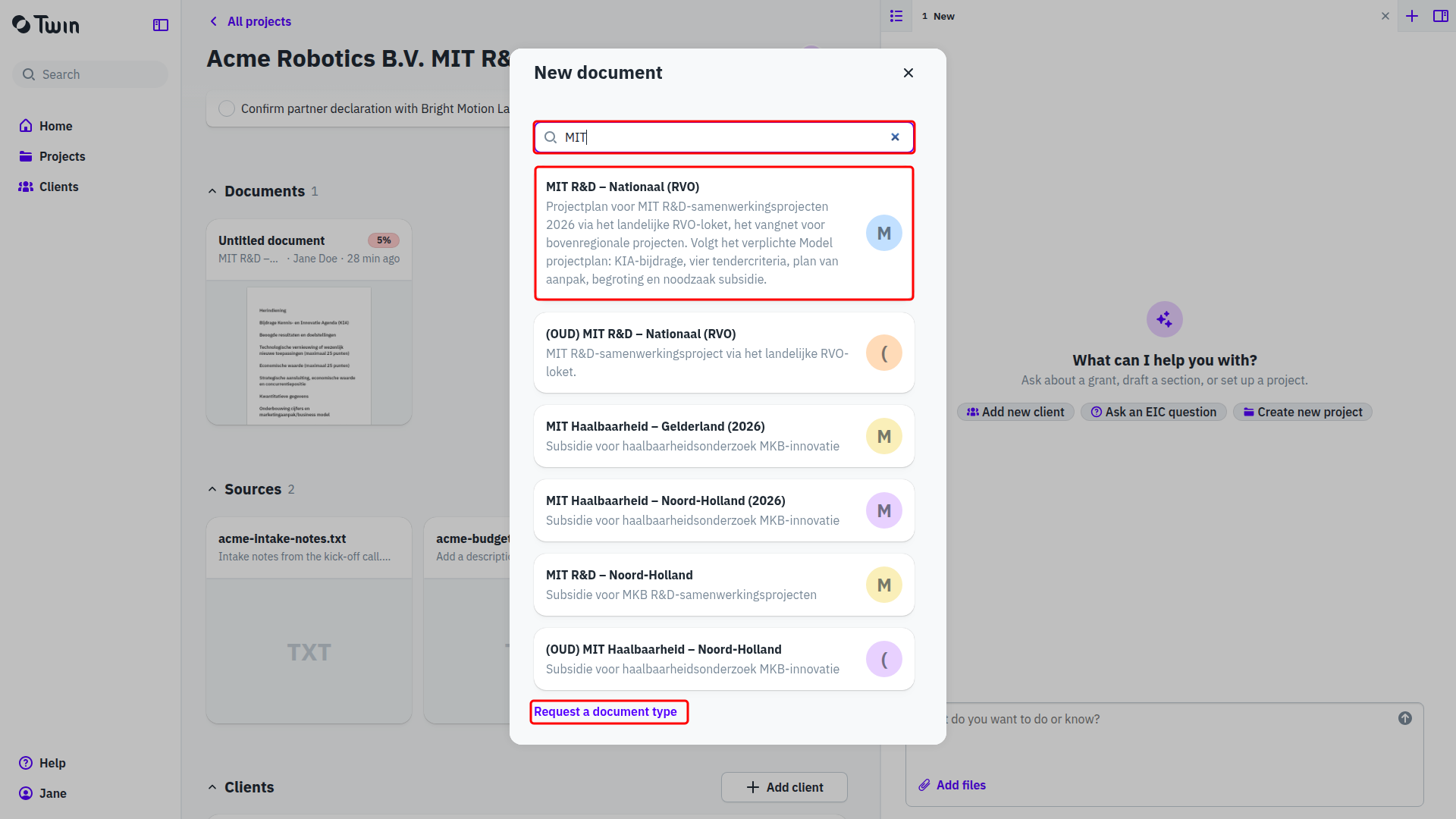
If the scheme you need is not in the list, click Request a document type at the bottom of the window. It opens a request form in a new tab.
The new-project wizard creates a document as well: on its last step, Let Twin write the <document type> creates the document and asks the assistant to draft it.
Find your way around the editor
The document title sits at the top left, with the document type and the word count underneath. Click the title to rename the document. Three controls sit on the right of the header: Table of contents, which slides a list of all sections in from the side, Download, which opens the downloads panel, and a three-dot menu for Document actions.
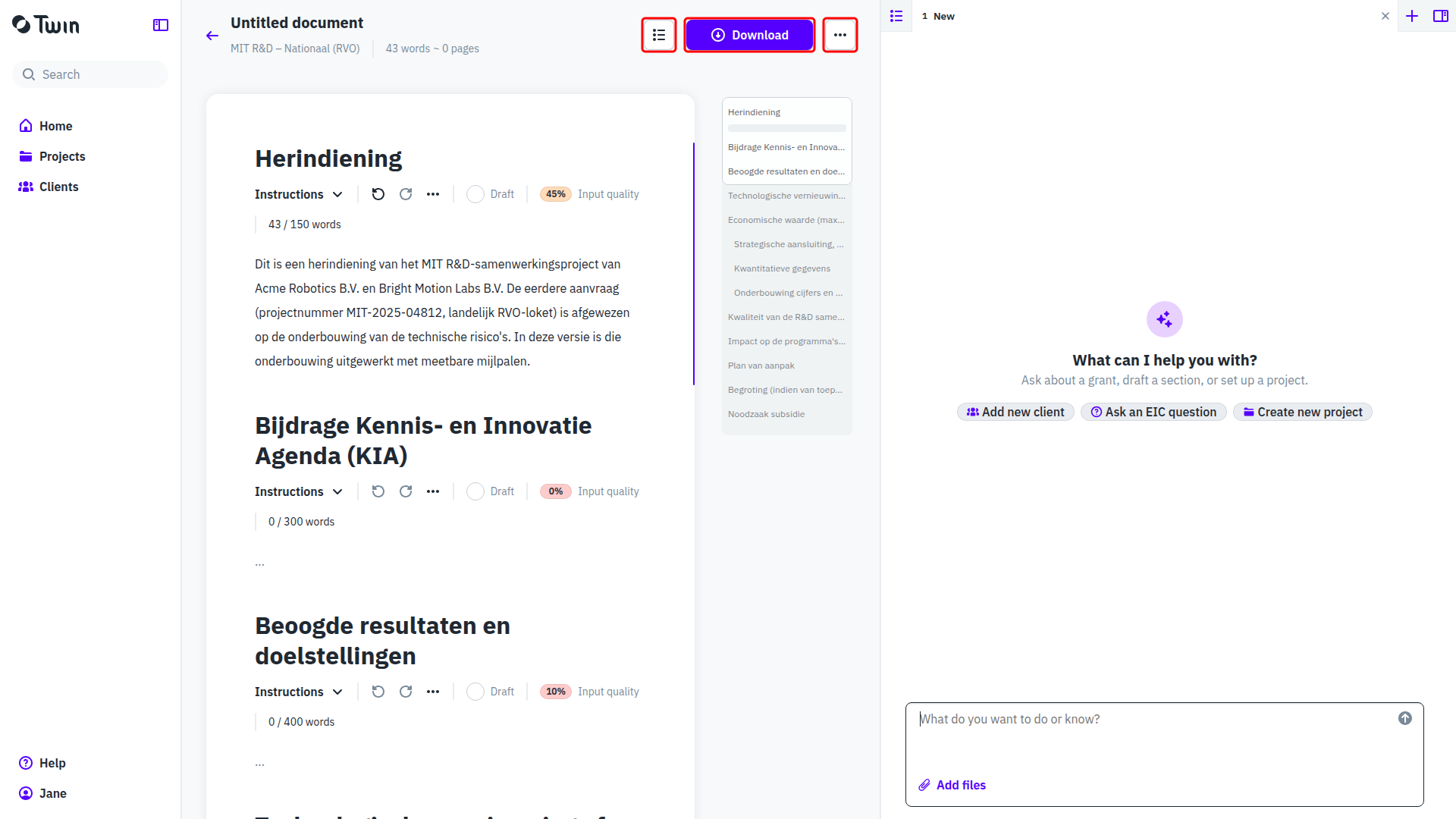
The body is one editable block per section, each with its own toolbar and length counter. See Understanding document sections. The column on the right is the assistant, which stays open on every page.
Document actions
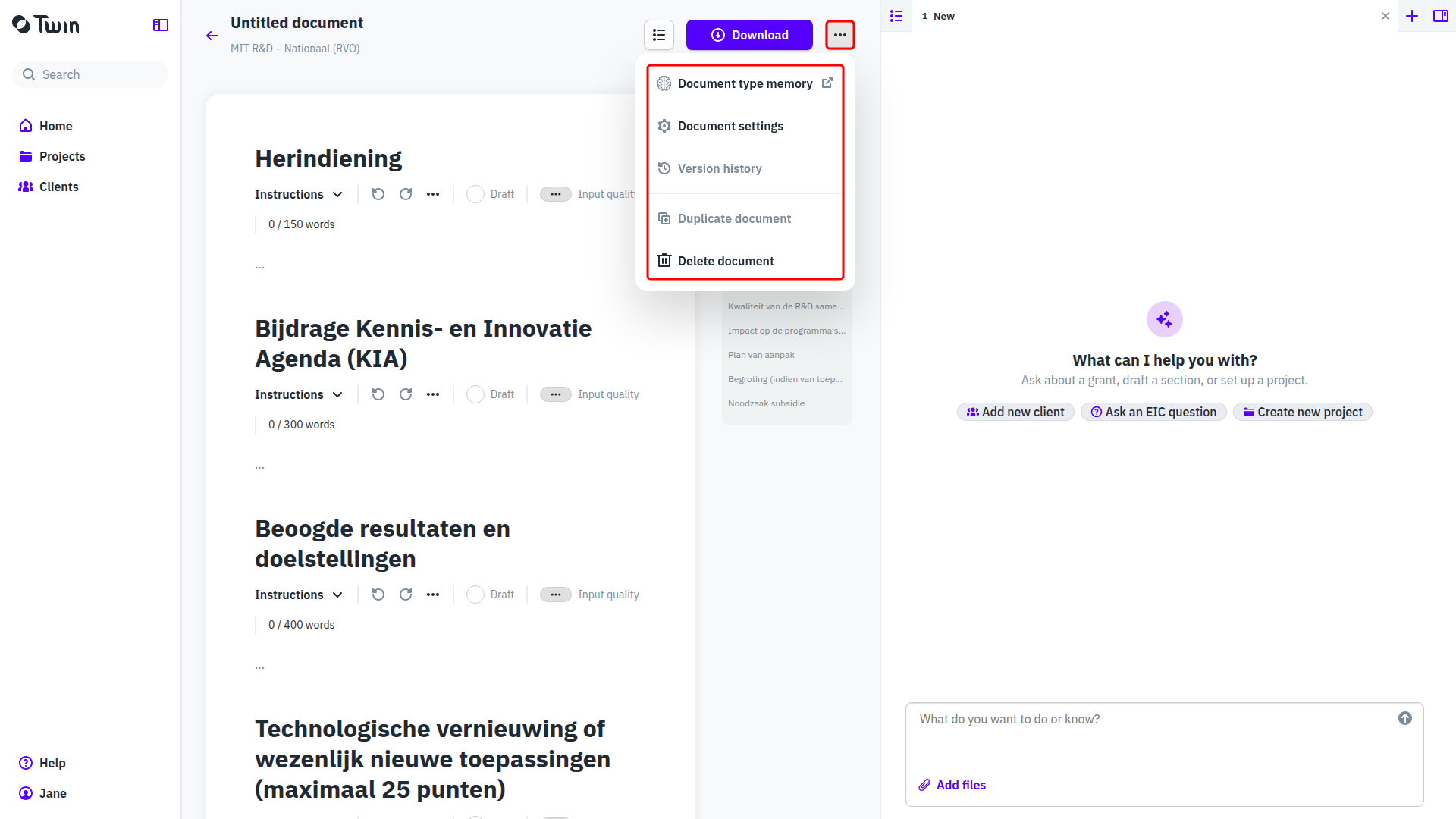
- Document type memory opens what Twin remembers about this document type. See Memory.
- Document settings holds one setting, Document language: the language the assistant writes in.
- To read past versions, open a section's three-dot menu. See Viewing section history.
- Delete document removes the document.
Delete a document
Open Document actions and click Delete document. Twin asks you to confirm and warns that the action cannot be undone. After deleting, you land back on the project.
Good to know: documents cannot be archived. What you archive is the project, through Project actions on the project page.