
Answering RVO's questions letter as a note in Twin
After you submit, RVO may send a letter with questions about one or more projects. Such a letter almost always asks for additional information from the client: restating the information that was already submitted does not answer it. In Twin you upload the letter (or paste the text) into the conversation of the document it concerns; the assistant writes the answers as a note in the project, and you can export that note to Word for whatever has to follow.
Before you start
- Work in the conversation of the document the letter concerns, not in the project chat. That is where the assistant reads the sources of that document, and where the bottlenecks and solutions sit exactly as they were numbered in the application.
- The letter's reference number and the deadline go into the note, so upload the letter complete, or paste the full text.
- The additional information from the client belongs with the project's sources, so the answers can rest on it.
Add the letter
- Open the document and start a New chat, or continue the conversation you wrote the application in.
- Upload the letter (or paste the text) with the questions exactly as RVO wrote them, including the numbering. Add what you want at the end:
Maak hier een notitie van met per vraag eerst de vraag van RVO en daarna ons antwoord.

- The assistant answers per question: the question as it stands in the letter, then the answer, written as de aanvrager and pointing at the numbered bottlenecks and solutions of the application. When a question asks for something the sources do not contain, it says so and lists the point under the open items for the client, instead of filling in a figure.
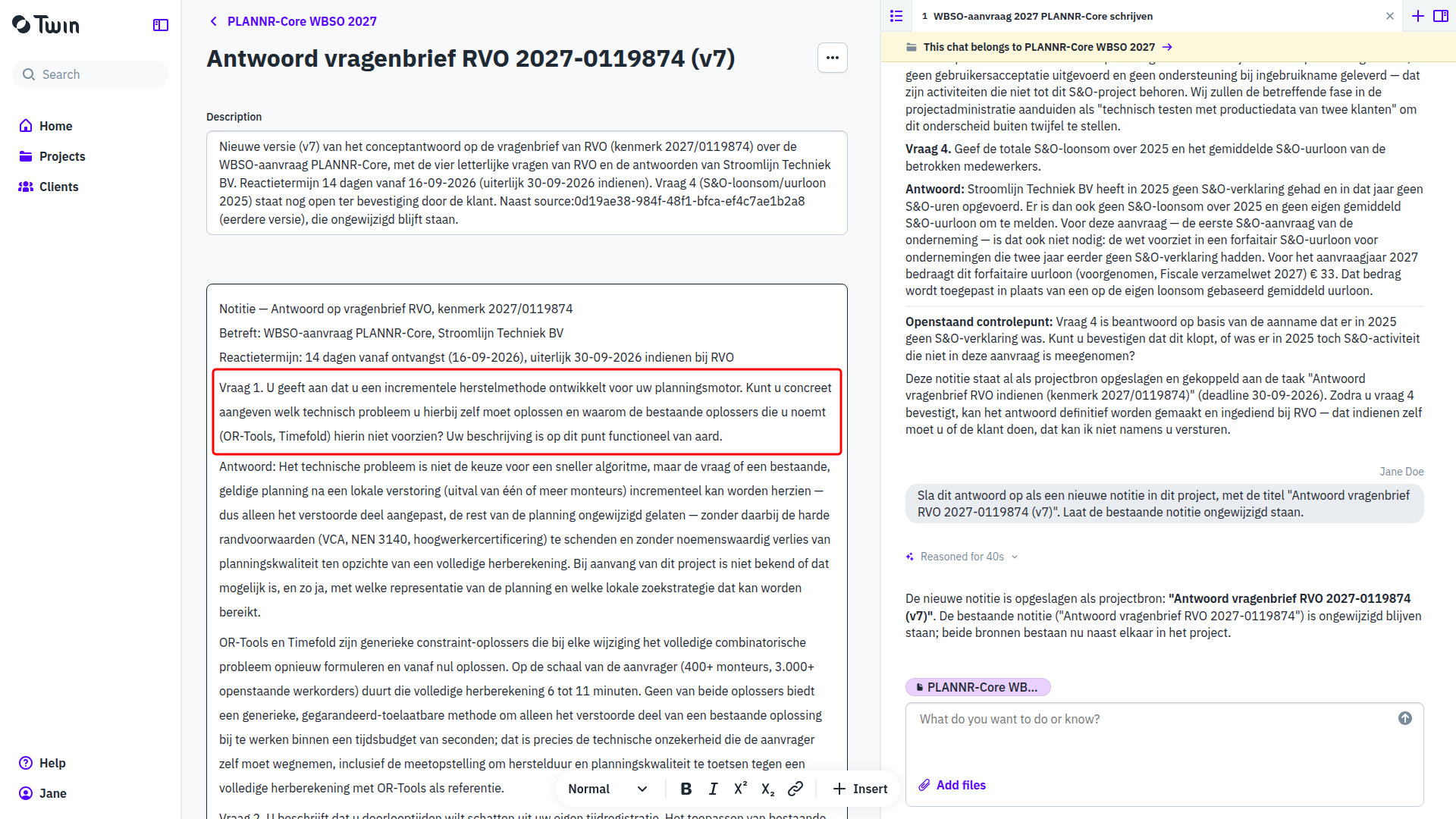
- If the assistant shows the text in the chat first and asks whether to save it, confirm: Ja, voeg deze notitie als bron toe aan het project. The note appears in the Files section of the project with the letter's reference in its title.

Export the note to Word
- Open the note page. It opens with the note's title at the top and the text in an editor, so you can still change a sentence before it goes out.
- Click the three dots next to the title (Source actions) and choose Export to Word. The file downloads with the note's title and the export date as its name.

The Word file carries the questions and the answers and nothing else; the letterhead and the signature are added outside Twin.
What the note holds
- RVO's questions, literally. RVO's wording and RVO's numbering, above each answer. A question the assistant paraphrased can be pasted over in the note page.
- Answers from the developer's side. Every answer names the technical bottleneck, what was tried or measured, and what is still open.
- No invented bottlenecks. The answers explain the technical bottlenecks and solutions that are in the submitted application. A new bottleneck is added only on the strength of the additional information from the client, and the assistant marks it as new relative to the application.
- Open items. The note ends with the points the client has to confirm, such as a wage figure or a fact that was not in the sources.
- The deadline. The assistant sets the project status to Awaiting information and adds a task with the deadline from the letter.
Good to know
- The note is a source in the project, so the assistant reads it again when you write next year's follow-up application.
- You can add a note by hand as well: Add in the Files section, then New note. Every note has the same Export to Word.
See also Writing WBSO applications in Twin, WBSO follow-up application: continuing last year's project and Sources: what Twin writes from.